Step 1. Make sure your Windows operating system edition has RDP server functionality
Step 2. Enable Remote Desktop
Make sure that you signed in as an administrator.
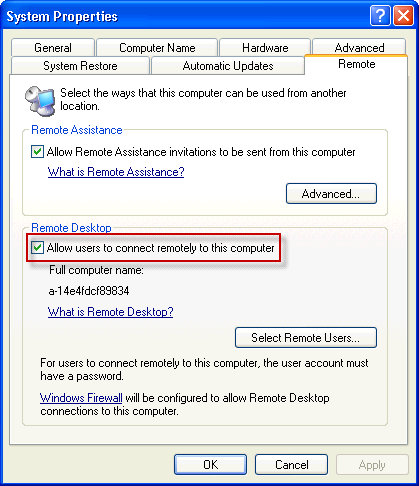
Click Windows Start button > Control Panel > Performance and Maintenance > System, in the left pane, click Remote Settings.
Click the Remote tab, select the “Allow users to connect remotely to this computer” check box, and then click OK.
Step 3. Grant the user account remote access
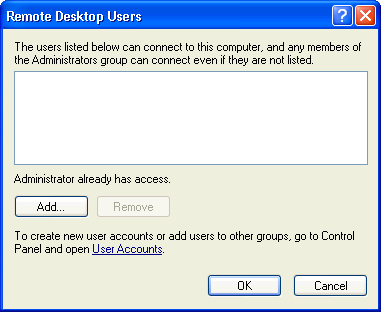
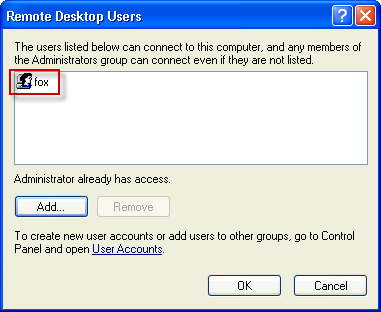
A user account that will be used to connect to Remote Desktop has to be allowed to do that. If the user account is a member of the Administrators group it is already allowed
to connect and you can skip this step, otherwise click Select Users.
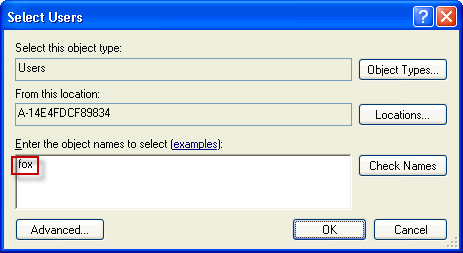
Enter a user name and click OK button.
Click OK button.
Step 4. Make sure the account is password protected
The user account has to be password protected in order to be able to access Remote Desktop.
Click Windows Start button > Control Panel > User Accounts.
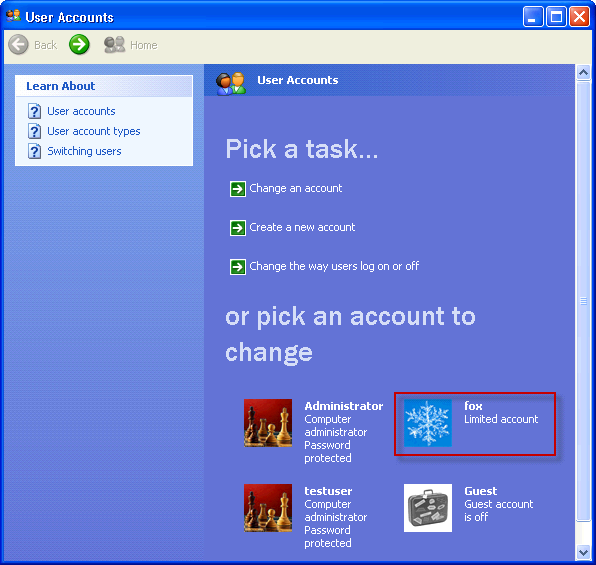
Click on the the user name.
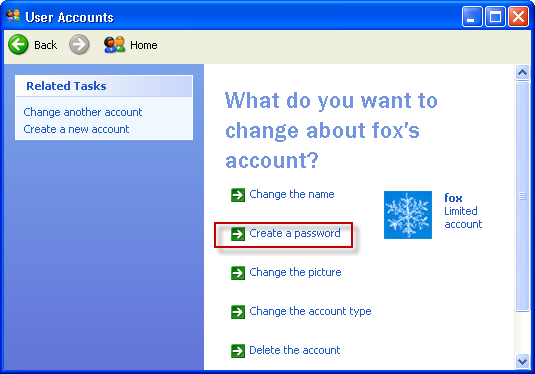
If you see Create Password in the options list, it means that the account does not have a password.
Click Create Password and follow instruction to create a password.
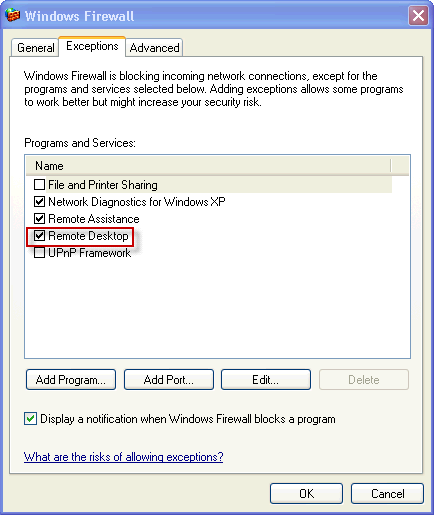
Step 5. Make sure Windows Firewall allows Remote Desktop connections
Click Windows Start button > Control Panel > Security Center > Windows Firewall.
Make sure that “Don’t allow exceptions” option is not selected.
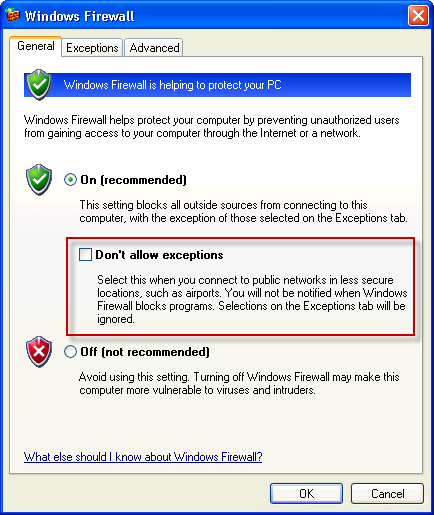
Select the Exceptions tab, and verify that the Remote Desktop check box is selected